
Interface Overview
Hover over each area to learn about its function. The Studio is divided into four main regions.
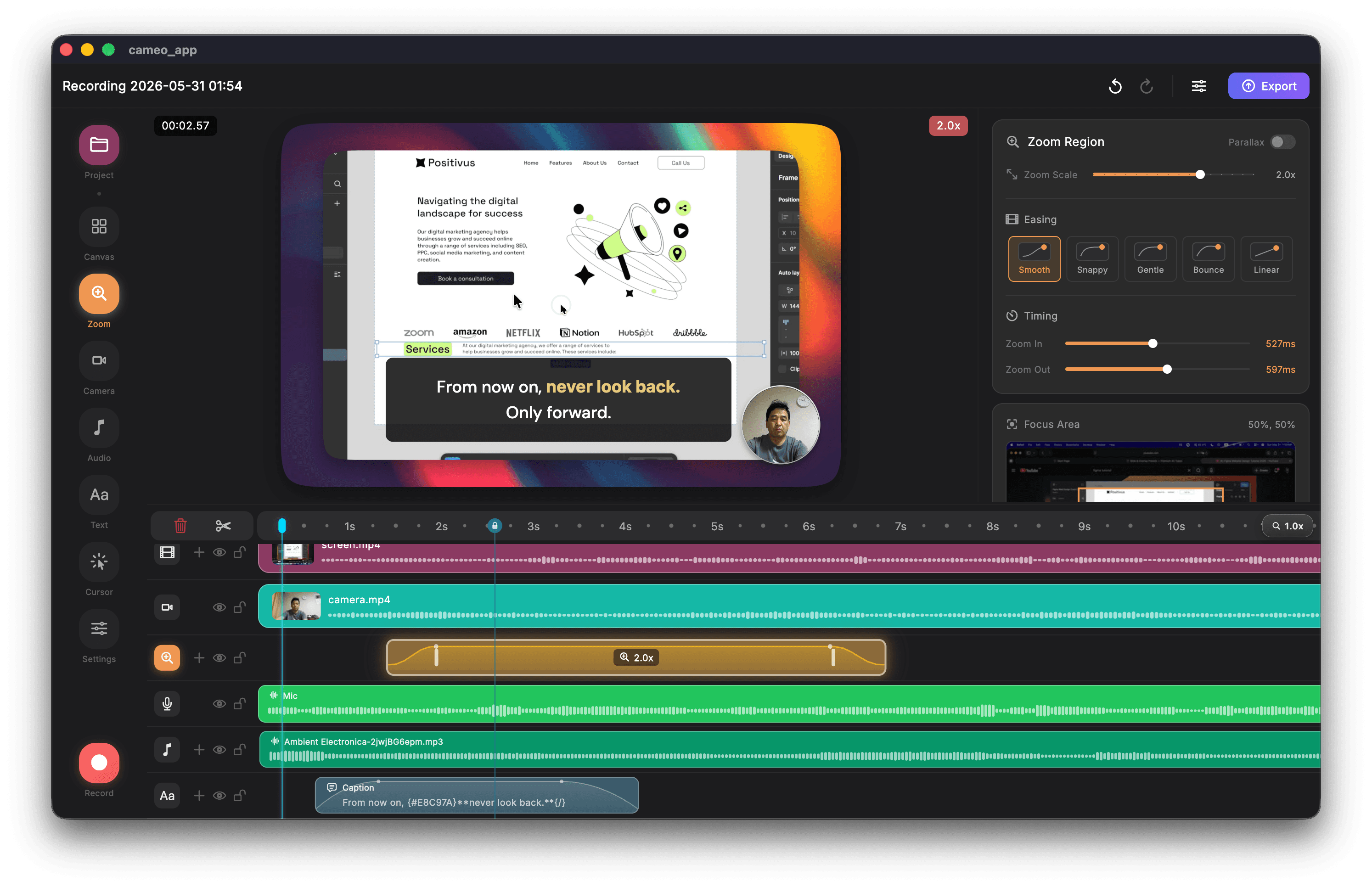
Preview Area
Real-time preview with Canvas background, video content, text overlays, and Camera PiP
Inspector Panel
Zoom settings, easing curves, timing controls, and focus area options
Timeline
Multi-track editing with ruler, video clips, zoom points, camera, audio waveforms, and captions
Sidebar Tools
The left sidebar provides quick access to all editing tools. Click any tool to select it and view its settings in the Inspector panel.
Project
Open and manage recordings
Canvas
Backgrounds and styling
Zoom
SmartZoom and manual zoom
Camera
Webcam PiP settings
Audio
Audio levels and mixing
Text
Text overlays and captions
Cursor
Cursor effects and highlights
Record
Start a new recording
Preview Area
Interactive Editing
- • Drag — Move elements anywhere
- • Scroll — Resize PiP and text
- • ⌥ + Scroll — Zoom camera feed
- • Pinch — Trackpad zoom gesture
Real-time Preview
- • All effects rendered in real-time
- • WYSIWYG editing experience
- • Canvas backgrounds visible
- • GPU-accelerated rendering
Timeline
The timeline consists of a ruler showing time markers and multiple tracks for different content types.
Timeline Ruler
Shows time markers and tick marks. Click anywhere on the ruler to jump to that time.
Playhead
The red vertical line shows current playback position. Drag to scrub through video.
Track Types
Auto-Generated Captions
Generate captions automatically from your microphone audio using Whisper AI. Captions are added directly to the timeline and can be edited like any other text overlay.
How it works:
- Record with microphone enabled
- Click "Generate Captions" in Audio tab
- Whisper AI transcribes your audio
- Captions appear on timeline with timing
- Adjust timing and text as needed
Important Notes:
- Clear voice required: Whisper works best with clear speech without background music
- Hallucination warning: If music or system sounds are mixed with your voice, Whisper may produce repetitive or incorrect text (known as "hallucination")
- Best practice: Mute system audio when recording voice-overs, or use headphones to prevent audio bleeding
Editing Workflow
Import
- • Open with ⌘+E
- • Auto-analysis
Enhance
- • Add SmartZoom
- • Text overlays
- • Canvas styling
Preview
- • Play through
- • Check timing
Export
- • Choose codec
- • GPU render